 Skip to content
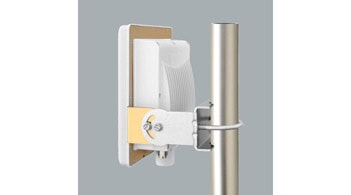
Many people struggle to extend their Wi-Fi coverage effectively. It’s frustrating when your connection drops in parts of your home or office. Understanding what an access point is and how it can solve your connectivity issues is the first step to a seamless online experience.
An access point is a networking hardware device that allows devices to connect to a wired or wireless network, extending Wi-Fi coverage and improving connectivity within a larger area than standard routers typically cover.
With the basics clear, let’s dive deeper into how access points function and why they might be the perfect solution for your networking needs.
What does an access point do?
An access point is a device that connects wireless devices to a wired network. It acts as a central hub for wireless communication, allowing devices such as laptops, smartphones, and tablets to connect to the internet or other devices on the network without the need for physical cables. The access point receives data from wireless devices and transmits it over the wired network and vice versa, allowing wireless devices to access network resources.
How does the access point work?
An access point (AP) is a device that allows multiple devices to wirelessly connect to a wired network. It acts as a central hub or router that broadcasts a wireless signal and provides a connection point for devices like smartphones, laptops, and tablets to access the network.

Here’s how an access point works:
1. Establishing a wired connection: The access point is typically connected to a wired network, such as a router or modem, using an Ethernet cable. This connection provides internet access to the access point, enabling it to transmit the network signal wirelessly.
2. Converting signals: The access point converts the wired network signal into a wireless signal using Wi-Fi technology. It utilizes radio waves to broadcast this signal throughout the area where wireless devices can connect.
3. Broadcasting the wireless signal: The AP transmits the wireless signal through an cURL Too many subrequests. integrated into the device. The signal is propagated in a specific range, known as the coverage area.
4. Authenticating devices: When a wireless device, such as a smartphone or laptop, comes within the coverage area of the access point, it detects the wireless signal being broadcasted. The device attempts to connect to the access point by authenticating with the correct credentials, like a password or network key.
5. Providing network access: Once a device is authenticated, the access point grants network access to that device. The AP acts as a bridge between the wired network and the wireless device, allowing the device to transmit data to and receive data from the internet through the access point.
6. Managing multiple connections: Access points can handle multiple connections simultaneously. They can accommodate several devices, creating a local network for wireless devices to share the same internet connection and communicate with each other.
Overall, access points facilitate the extension of a wired network’s reach and enable wireless connectivity for multiple devices, allowing them to access the internet and communicate with other networked devices.
What is an example of an access point?
A Wi-Fi router is an example of an access point.
Another example could be a wireless hotspot, often found in cafes, airports, and hotels.
What’s the access point used for?
An access point is used to connect wireless devices to a wired network. It acts as a communication hub, transmitting data between the wired network and the wireless devices. The access point enables wireless devices, such as laptops, smartphones, and tablets, to access the network and have internet connectivity.
What is the difference between a router and an access point?
A router and an access point are two separate devices used in computer networks, but they serve different purposes.
– A router is a networking device that connects multiple devices within a local area network (LAN) or between different networks. It operates at the network layer (Layer 3) of the OSI model and is responsible for directing traffic between different networks. Routers usually have several LAN ports to connect devices directly, and they also have the capability to connect to the internet through a modem or another WAN (Wide Area Network) connection. Routers usually include additional features like firewall protection, DHCP server, and network address translation (NAT).
– An access point (AP), on the other hand, is a device that enables wireless connectivity for devices in a wireless local area network (WLAN). It operates at the data link layer (Layer 2) of the OSI model and acts as a bridge between wifi-enabled devices and the wired network. Access points receive data from connected devices and transmit it to the wired network, and vice versa. Many access points today also integrate router functionalities and have built-in Ethernet ports to connect wired devices.
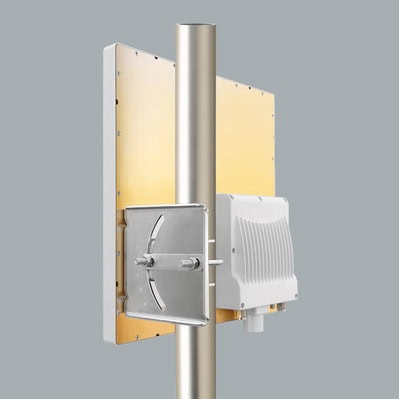
In summary, routers are used for managing networks, directing traffic between networks, and connecting networks to the internet. Access points are used for creating wireless networks and providing wifi access to devices within a network.
Is an access point the same as a hotspot?
No, an access point and a hotspot are not the same thing.
An access point (AP) is a networking device that allows multiple devices to connect to a local area network (LAN) wirelessly. It acts as a central hub or gateway for devices to access the LAN and communicate with each other. An access point is commonly used in homes or businesses to extend the reach of a Wi-Fi network or provide wireless connectivity in a specific area.
On the other hand, a hotspot refers to a location or area where you can access the internet wirelessly. It is typically a public place, such as a café, airport, or hotel, that offers Wi-Fi access to users. A hotspot generally consists of an access point connected to the internet, allowing users to connect their devices and access the web.
So, while an access point is a physical device that enables wireless connections to a network, a hotspot is a location or network that provides wireless internet access.
Are wireless access points worth it?
Wireless access points are devices that are used to create a wireless local area network (WLAN) by connecting to a wired network. They provide a stronger and more reliable Wi-Fi signal compared to standard routers, extenders, or repeaters.

Here are some reasons why wireless access points are worth investing in:
1. Extended Coverage: Wireless access points can effectively extend the coverage of your Wi-Fi network. They are designed to provide robust coverage across large areas or multiple rooms, making them ideal for large homes, offices, or outdoor spaces.
2. Better Performance: Wi-Fi extenders or repeaters can sometimes result in a degraded signal due to the connection loss between the extender and the router. In contrast, wireless access points create a direct connection to the wired network, ensuring a more stable and consistent Wi-Fi signal.
3. Speed: By creating a direct connection to the wired network, wireless access points provide faster data transfer speeds compared to extenders or repeaters. This is particularly important if you have a lot of devices connected to the network or if you require high-speed internet for activities like online gaming or streaming.
4. Network Segmentation: Wireless access points allow you to segment your network into different VLANs (Virtual Local Area Networks). This is useful for separating different types of devices or for creating guest networks, providing added security and control over your network.
cURL Too many subrequests.
cURL Too many subrequests.
cURL Too many subrequests.
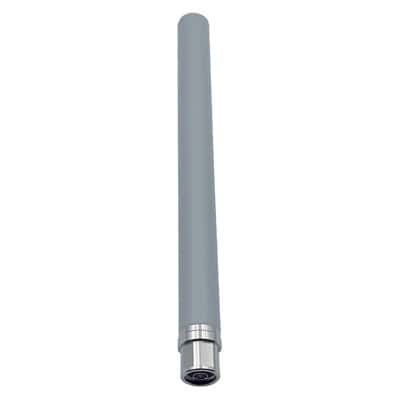
Omni-directional antennas cURL Too many subrequests.
cURL Too many subrequests.
cURL Too many subrequests.
cURL Too many subrequests.
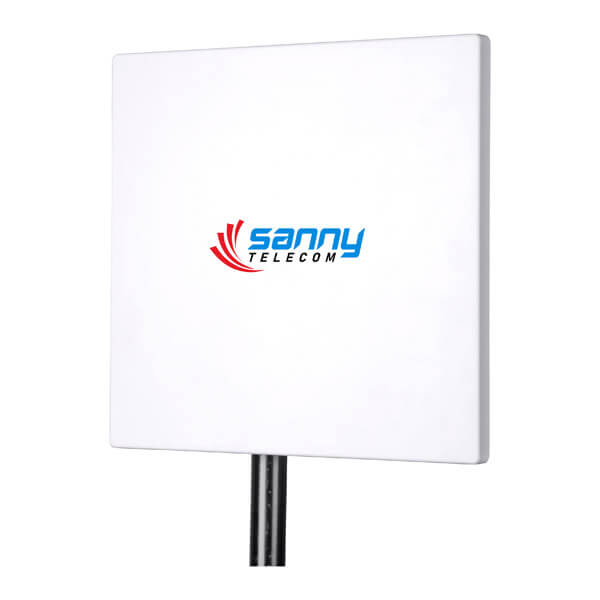
Panel AntennascURL Too many subrequests.
Parabolic Dish AntennascURL Too many subrequests.
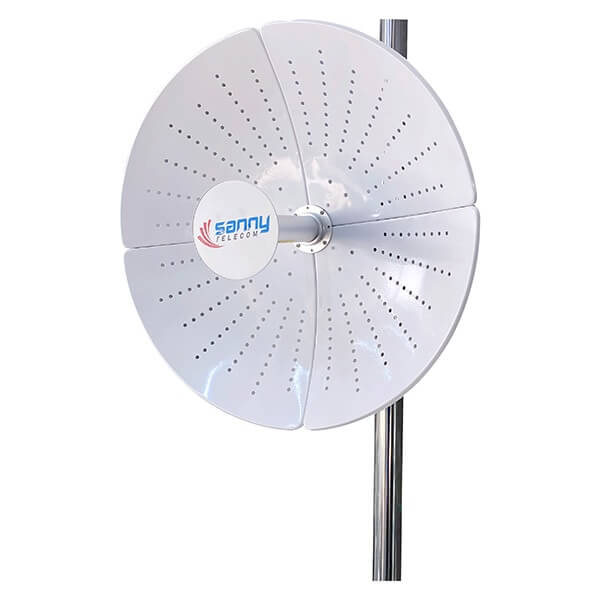
cURL Too many subrequests. Symmetrical horn antennas cURL Too many subrequests.
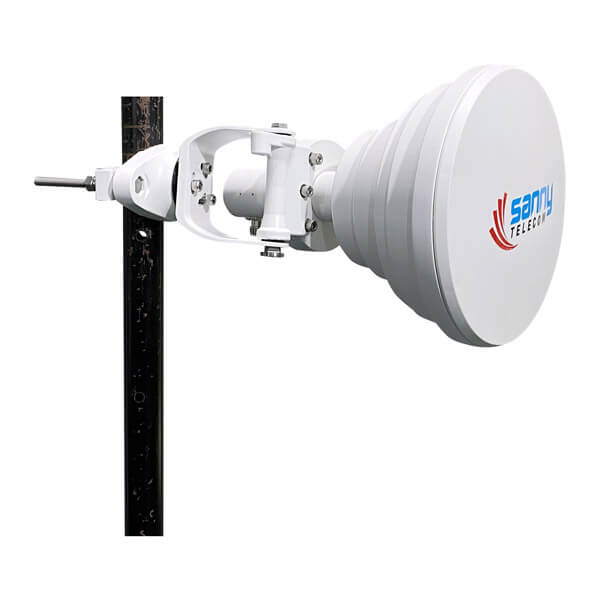
cURL Too many subrequests.
cURL Too many subrequests.
cURL Too many subrequests.
cURL Too many subrequests.
cURL Too many subrequests.
cURL Too many subrequests.
cURL Too many subrequests.
cURL Too many subrequests.
6. Save and apply the settings: After making the necessary changes, save and apply the settings in the access point’s administration interface.
7. Test the access point: Disconnect the Ethernet cable from your computer and connect to the newly created Wi-Fi network on your device. Verify that you can access the internet through the access point.
Note: The above steps are a general guideline, and the actual process may vary depending on the access point model. It is recommended to consult the product documentation for detailed instructions specific to your device.
 German (Switzerland)
  English
  Spanish
  German
  French (France)
  Korean
  Russian
  Indonesian
  French (Canada)
  Vietnamese
  Armenian
  Albanian
  Assamese
  Acehnese
  Amharic
  Czech
Czech  Bulgarian
  Cebuano
  Malayalam
  Japanese
  Dutch
Dutch